Double-click Concentric6 in the Connections List. The Properties window displays the properties of Concentric6, as shown here.
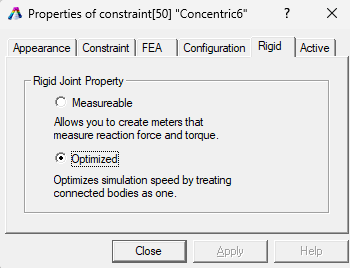
In the Properties window, you can define the properties of your model. Open the Properties window for Concentric6.
Double-click Concentric6 in the Connections List. The Properties window displays the properties of Concentric6, as shown here.
 You can display the Properties window for an Object or Connection by 1) double-clicking the item’s name in the Object Manager, 2) double-clicking the object within the model, or 3) right-clicking the object or object name and selecting Properties from the pop-up menu.
Select other objects in the Object List. As you select each object, it is highlighted in the modeling window and its properties are displayed in the Properties window. You can customize the Properties window for any object by adding or removing tabbed pages from the window. To add or remove pages, simply check or uncheck the page names in the Properties List.
In the Object List, right-click Piston Head-1 and choose Properties from the pop-up menu.
Click the checkbox for Surface Rendering in the Properties list of the Object Manager. This enables the Surface Rendering page of the Properties window.